


tinyCam Monitor PRO for IP Cam
3.96.07K Reviews
App Specs
- Version
- Varies with Device
- Updated On
- License
- $3.99
- Downloads
- 500,000+
- Developer
- Tiny Solutions LLC
- Categories
- Video Players & Editors
- Platform
- Android, iOS
Screenshots
 Analysis by AppCompare
I tend to judge a camera app by a practical question: can I check the places I care about without turning a quick glance into a maintenance project? tinyCam Monitor PRO is aimed at people bringing different IP cameras into one viewing setup, rather than at creators editing or publishing video. That makes it a useful tool for home monitoring, but the value depends on how well your particular cameras and network fit the way you want to work.
Tiny Solutions LLC has built this as a paid video-player and camera-monitoring app, priced at $3.99, with an Everyone age rating. It has been around since December 9, 2010, and has more than 500,000 installs; its average rating is 3.9 from around 36,000 ratings, alongside about 6,100 written reviews. Those figures suggest an established app with a substantial audience, though they can’t tell you whether your specific camera will be painless to configure. I would treat camera compatibility and connection setup as the deciding questions.
A useful starting point for a mixed camera setup
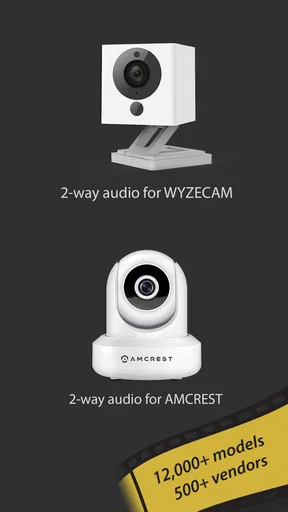
The app’s appeal is clearest if you already own cameras from different manufacturers or want a single place to view them. Its camera support covers Wyze, Yi, Eufy, Arlo, ONVIF, RTSP, and P2P IP cameras. That breadth can save you from jumping between manufacturer apps just to see what is happening in separate rooms or around the house. It also gives technically curious owners more room to work with compatible network cameras.
Before committing to a full setup, I would start with one camera and confirm that it connects reliably on the network you actually use. A camera can be compatible in principle while still needing its own connection details or setup steps. If the camera is already working in its manufacturer’s app, keep that app available as a fallback while you test live viewing and any controls you rely on. That small trial is more useful than adding every camera at once and then trying to identify which connection is causing trouble.
Making monitoring fit the way you use it
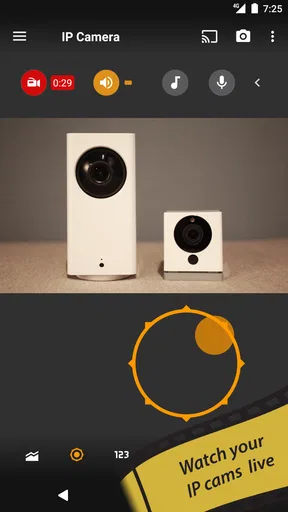
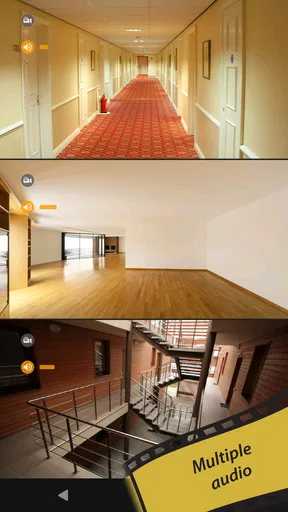
Once cameras are connected, the useful workflow is less about watching every feed constantly and more about arranging a view that answers a specific question quickly. A multi-camera layout can put an entryway, living space, and yard together, for example. That is convenient when you want a broad check, but a crowded grid is not always the clearest way to judge a small detail. I would use a grouped overview for routine checks and switch to a single camera when the exact scene matters.
Connection quality and image settings are a trade-off worth thinking through. Higher detail can help when you need to inspect what is happening, while a less demanding stream may be preferable on a weaker connection or when several feeds are open. Instead of tuning every camera for maximum quality, I would set the important views first and test them at the times you actually expect to check in. A camera that looks fine on home Wi-Fi may behave differently when viewed remotely.
The app is for monitoring rather than producing polished creative work: it is not a video editor or a publishing tool. Its “DIY DVR” role is the more relevant creative angle, giving camera owners a way to assemble a practical viewing and recording workflow from compatible devices. I see that as useful for people who want control over a small camera system, not as a substitute for a dedicated editing setup or a professionally managed security service.
Worth Reading Before You Choose

EA SPORTS FC Mobile 26 Is a Bigger Football Game, but It Takes Time

Flipboard Shows What News Apps Must Do Beyond the Feed

Switching to Android Auto Means Rethinking Your Driving Routine

Google Calendar Makes a Crowded Week Easier to Manage

Ludo King Makes the Most of the Minutes Between Plans

Baby Panda World Brings Quick Play to Modern Phones, but Its Game Library Feels Busy
Where convenience has limits
A single app cannot remove every camera-specific complication. Different brands and connection methods can make setup feel less uniform, and adding a camera may involve details that are not obvious if you have only used the manufacturer’s app. This is where the broad compatibility is both a strength and a source of friction: there are more ways to bring equipment together, but not every camera will behave identically. I would not assume that every feature or control works the same across every supported family.
Think about what happens when your internet connection is unreliable, too. Remote viewing depends on a working path between the phone and the camera, so a blank or delayed feed does not automatically mean the camera itself has stopped working. When you need dependable access, test the exact route you will use away from home and keep a simpler fallback—such as the camera maker’s app—until you know the arrangement is stable. For a person who wants a plug-and-play system with no setup decisions, a single-brand camera app may be the easier choice.
Choosing a practical monitoring workflow
I’d use this section to think through the routine you want the cameras to support before spending time arranging feeds: which views need a quick glance, and which need closer inspection? Starting with those priorities makes it easier to decide whether a combined layout is genuinely useful or whether the manufacturer’s app is already the simpler fit.
Everyday use, from quick checks to a small DVR setup
One realistic use is checking on a pet while you are out. You might open a room camera for a quick look, then switch to another view if you are also keeping an eye on the front door. A combined layout can make that check faster, while a single feed is better if you need to see whether a pet is actually in a particular corner. The key is to build the screen around the question you ask most often, rather than trying to keep every camera equally prominent.
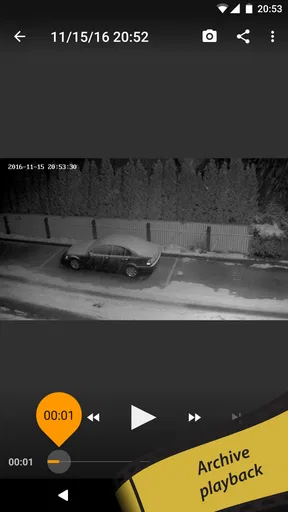
For a small home or workshop, the DIY DVR idea can also suit someone who wants a more hands-on arrangement using compatible cameras. Before relying on recordings, I would check where they are stored, how you reach them, and whether the setup still works when the phone is not on the same local network. Those checks matter more than a long list of camera tiles: monitoring is only useful when you can retrieve the view or footage at the moment you need it. Keep expectations tied to the cameras and recording workflow you have actually tested.
Against the usual alternative—using each camera brand’s own app—tinyCam’s advantage is consolidation and broader camera support. The manufacturer app may still be more straightforward for initial setup, brand-specific options, or troubleshooting that depends on that camera’s own tools. I would not delete those apps just because a combined viewer works. Use the dedicated app when you need to configure a camera, and use a consolidated view when checking several compatible cameras is the everyday task.
Who should choose it, and who should look elsewhere
I think this is most appealing to an owner who already has compatible IP cameras, especially a mixed collection, and is willing to spend some time getting the feeds organized. It can also suit someone building a modest DIY monitoring setup who values having several views in one place. The paid price is easier to justify when consolidation is something you will use regularly, rather than when you only need to check one camera occasionally.
I would steer away if you expect every camera to connect with no troubleshooting, want a dedicated, polished experience for one brand, or need a complete security service rather than a viewer and DIY tool. It is also not the right pick if what you really want is to edit clips, add creative effects, or publish finished video; its role is observing and managing compatible camera feeds. In those cases, the camera maker’s own app or a purpose-built editing tool is a better match.
Questions worth answering before you rely on it
Will it work with your camera? The practical answer is to check whether it belongs to one of the supported camera families or uses a compatible standard such as ONVIF or RTSP, then test that exact device. Support for a family is a helpful starting point, not a promise that every model and feature will behave identically. Add one camera first, confirm the live view, and only then build out the rest of the layout.
Do you need the camera manufacturer’s app as well? I would keep it, at least during setup and whenever you need brand-specific configuration or a fallback. Can you watch multiple cameras together? The app offers multi-camera layouts, but a grid is most useful for broad awareness; for close inspection, one feed is often clearer. And is it suitable for recording? The DIY DVR capability makes it relevant for a hands-on recording setup, but I would verify the storage and retrieval workflow with your own cameras before treating it as the only record of an important event.
My verdict after weighing the trade-offs
Have you ever wanted to keep an eye on your home, your pets, or maybe even just your garden while you're out and about? Well, let me introduce you to tinyCam Monitor PRO for IP Cam. This app is like having your very own security control room right in your pocket. I’ve spent some quality time exploring this app, and I’m here to spill the beans on what makes it tick.
First things first, getting up and running with tinyCam Monitor PRO is a breeze. The app is available on both Android and iOS, which is always a plus in my book. Once you’ve downloaded it, the setup process is pretty straightforward. You just need to add your cameras by entering their IP addresses or scanning the QR codes that come with them. I found this to be a pretty handy feature, especially if you’re not keen on manually entering numbers.
Once you’ve added your cameras, the app lets you customize each one. You can rename them, adjust the resolution, and even set the frame rate. It’s like being the director of your own little surveillance network. I played around with these settings and was able to get the perfect balance between quality and performance for my needs.
Features That Stand Out
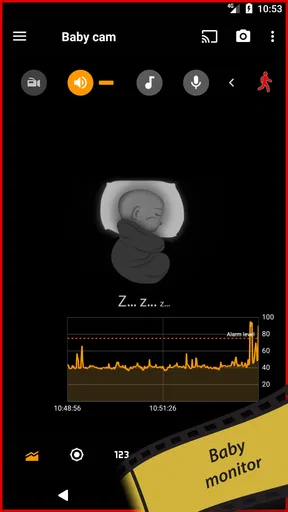
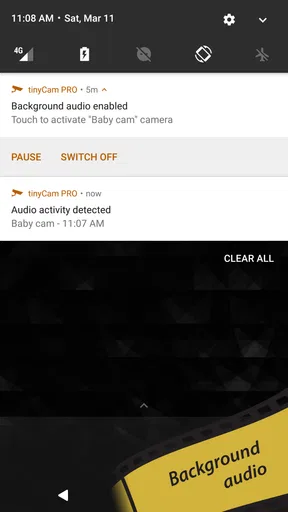
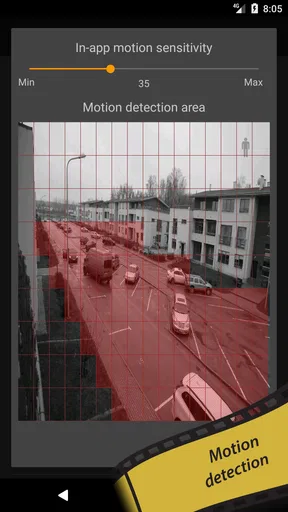
Now, let's talk about some of the features that really make this app pop. One of the standout features for me was the motion detection. This feature allows the app to notify you when it detects movement in any of your camera feeds. You can even set up specific zones to monitor, which is perfect if you’re only interested in certain areas of the footage.
Another feature I found really useful is the two-way audio. This allows you to communicate through the camera, which is great if you want to talk to someone on the other side or maybe shoo away an unwanted animal in your yard. I tested this out with a friend, and the audio quality was surprisingly clear.
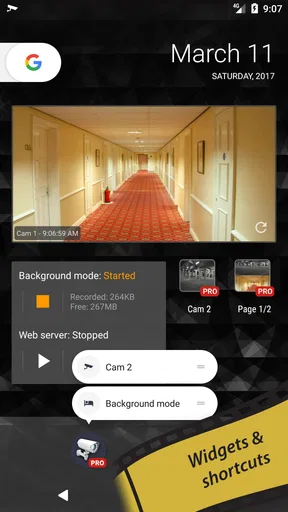
The app also supports multiple camera layouts, so if you’ve got a bunch of cameras set up, you can view them all at once in a grid format. I’ve got to say, it’s pretty satisfying to see all your feeds in one place, and it makes monitoring multiple areas a piece of cake.
User Experience
In terms of user experience, tinyCam Monitor PRO is quite intuitive. The interface is sleek and user-friendly, which makes navigating through the app a pleasant experience. I didn’t encounter any major hiccups while using it, which is always a relief. Plus, the app is regularly updated, ensuring it stays compatible with the latest devices and security updates.
Another thing worth mentioning is the app’s support for cloud storage. This means you can store your recordings off-site, which is a great option if you’re worried about someone tampering with your footage. I tried out the cloud storage feature, and it was a cinch to set up and use.
All in all, tinyCam Monitor PRO for IP Cam is a solid choice for anyone looking to keep tabs on their property remotely. It’s packed with features that make it versatile and effective, whether you’re using it for security, pet monitoring, or just for fun. The app’s ease of use and customization options make it accessible for both beginners and tech-savvy users alike.
If you’re in the market for a reliable surveillance app, I’d definitely recommend giving this one a try. It’s got a little bit of everything and then some. So go ahead, download it, and take control of your security.
Pros
- Supports a wide range of IP cameras.
- Offers real-time video recording.
- User-friendly interface with easy setup.
- Low latency streaming for smooth viewing.
- Supports multiple camera view layouts.
Cons
- Limited cloud storage options.
- Occasional connectivity issues.
- Interface can be overwhelming for beginners.
- High battery consumption during use.
- Paid app with no free version available.
FAQs for tinyCam Monitor PRO for IP Cam
What features does tinyCam Monitor PRO offer for IP cam monitoring?
tinyCam Monitor PRO provides a comprehensive set of features for IP cam monitoring, including support for over 10,000 camera models, PTZ control, motion detection, and two-way audio. It also allows for simultaneous viewing of multiple cameras, cloud recording, and secure access through password protection, making it a robust solution for both personal and professional use.
Is tinyCam Monitor PRO compatible with both Android and iOS devices?
tinyCam Monitor PRO is primarily designed for Android devices. It offers extensive compatibility with a wide range of Android smartphones and tablets. However, iOS users may need to look for alternative apps as tinyCam Monitor PRO does not natively support iOS devices. Always check the app store for the latest compatibility updates.
How user-friendly is the interface of tinyCam Monitor PRO?
The interface of tinyCam Monitor PRO is designed to be intuitive and user-friendly, catering to both beginners and advanced users. It features a clean layout with easily accessible controls for managing multiple camera feeds. The app provides detailed tutorials and support to help users quickly set up and customize their surveillance systems.
What are some potential drawbacks of using tinyCam Monitor PRO?
While tinyCam Monitor PRO offers a wide range of features, some users report occasional connectivity issues and a steep learning curve for advanced settings. Additionally, the app is only available for Android, limiting cross-platform use. Users should ensure their network setup is compatible and secure for optimal performance.
Does tinyCam Monitor PRO support cloud storage for camera recordings?
Yes, tinyCam Monitor PRO supports cloud storage options, allowing users to save their camera recordings securely online. It is compatible with several cloud services, providing flexible storage solutions. Users can configure settings to automatically upload recordings, ensuring that footage is safely stored and easily accessible from anywhere.


